When your boarding pass won’t scan at the gate it turns a routine moment into a potential delay—lines grow, stress spikes and you risk missing boarding even when your ticket and ID are fine. It’s one of those small tech hiccups that has outsized consequences if you’re tight on time or traveling with connections.
This guide walks you through quick fixes you can try on the spot, your reprint and manual-boarding options at the airport, what security and gate agents will do to verify you, and straightforward prevention steps so the next time your pass won’t scan you’ll be ready to fix it fast.
Quick Answer
If your boarding pass won’t scan, start with quick-screen and app fixes (brightness, remove glare/smudges, open the pass in Wallet or take a screenshot). If those don’t work, use another device or the airline’s website, and ask staff at the gate or check‑in to reprint or verify your booking with ID and your booking reference—most agents will help immediately to avoid delaying boarding.
- Turn screen to maximum brightness, disable battery saver/auto-brightness, and hold the phone flat to cut glare.
- Wipe the screen, remove thick cases/screen protectors, and try rotating the phone or switching to full-screen/Wallet view.
- Take a screenshot or save the PDF/PNG so you can zoom in or show the image if the live barcode won’t render.
- Forward the pass to a partner’s phone or open the airline’s mobile website/offline file if the app is glitching.
- If nothing scans, show ID + booking reference/e‑ticket to the gate agent or ask them to reprint your boarding pass.
- Carry a charged power bank and save passes offline (screenshot or add to Wallet) to prevent the problem before it starts.
Why This Happens
When a boarding pass won’t scan, it almost always comes down to two things: the barcode image the scanner expects isn’t being presented in the right way, or the physical barcode has been degraded. Below are the common technical and physical causes so you know why scanners fail even when the pass appears to be correct.
- Low screen brightness or power-saving dimming — Scanners rely on contrast between light and dark; dim screens reduce contrast and can make the barcode unreadable to optical readers.
- Glare, reflections and viewing angle — Overhead lights, sunlight or glossy screen protectors create specular reflections that obscure the code; angled viewing can distort the scanner’s read of the bars or matrix.
- Smudges, fingerprints and dirty screens — Oils and dirt lower contrast and blur edges, degrading the barcode’s crisp lines or modules that scanners need to decode.
- Screen protectors, tempered glass or thick cases — Extra layers can change reflectivity, introduce refractive distortions or create moiré patterns that confuse scanners.
- Display rendering and dark/light themes — Some apps render barcodes with subtle anti-aliasing, dark-mode color swaps or high-contrast accessibility settings that alter the exact blacks and whites scanners expect.
- Image compression or low-resolution exports — Boarding passes sent by email or saved as compressed images/PDFs may be downsampled so the barcode becomes pixelated or blurred.
- Incorrect barcode type or formatting — Airports and airlines use specific symbologies (PDF417, Aztec, QR); if the pass is converted or displayed in a nonstandard format some scanners won’t recognize it.
- Damaged, folded or faded printed barcodes — Thermal prints can fade, inkjet/laser prints can smudge or be sliced by folds; physical damage breaks the bars or modules needed for a read.
- Battery or OS restrictions — Low-battery modes and some OS power settings reduce brightness or change rendering behavior, incidentally making barcodes harder to scan.
- App or caching glitches — The airline app or mobile browser may fail to render the barcode fully (partial images, white boxes, or cached thumbnails) so the visible code isn’t the full, scannable image.
- Scanner limitations and environment — Older or misaligned scanners, dirty scanner windows, or busy gate setups with poor lighting can fail to read perfectly fine codes that would scan under ideal conditions.
Practical Solutions
When a boarding pass won’t scan, a calm, organized approach gets you through faster than panicking. Use this triage-and-escalate workflow, clear communication tips for agents, and a short list of handy travel items to keep in your bag.
-
Fast triage (what to check first)
Quickly confirm the pass is fully loaded and your screen is unlocked; if it looks correctly displayed but won’t scan, move immediately to one of the escalation options below to avoid missing the gate.
-
Escalation path — step-by-step
- Show the pass to the gate agent and ask them to scan again; sometimes a different scanner angle or operator makes the difference.
- If scanning still fails, request a reprint at a kiosk or from the airline counter—these are routine and usually free when boarding is imminent.
- Ask for manual verification (name + booking reference or e‑ticket) and be ready to present your photo ID or passport for identity confirmation.
- If you’re traveling with someone else on the booking, try using their device to display the pass or forward the confirmation email so the agent can try an alternate copy.
-
How to communicate with staff
Be concise and factual. Say something like: “My boarding pass won’t scan. Can you reprint it or check my reservation by name/booking reference? I have my ID.” Show any reference numbers immediately—this speeds verification and keeps lines moving.
-
Documentation to have ready
- Photo ID or passport
- Booking reference or e‑ticket number (on email or printed)
- Confirmation email on an alternate device or a printed copy, if available
-
Product-based backups worth carrying
The following items won’t fix every scanning issue, but they significantly reduce the chance you’ll be stuck at the gate:
- High-capacity power bank — keeps your phone charged so you don’t hit low-battery modes that dim displays.
- Microfiber screen cleaning kit — removes fingerprints and oils that confuse scanners.
- Anti-glare / anti-reflection screen protector — helps scanners read codes under bright airport lighting.
- Portable mobile thermal printer — handy for travelers who prefer an instant paper backup or deal with small regional carriers that still prefer printed passes.
-
When time is tight
If boarding is already in progress, tell the gate agent immediately and request an on-the-spot reprint or manual check. Agents prioritize imminent boards and will typically accommodate passengers who alert them early.
Recommended Products
These items solve the most common causes of a boarding pass won’t scan: low battery, smudged or reflective screens, and the need for a physical backup. Keep a charged phone, a clean, low‑glare display and a compact way to print or show a copy to avoid hold‑ups at the gate.
Anker PowerCore 26800 Portable Charger
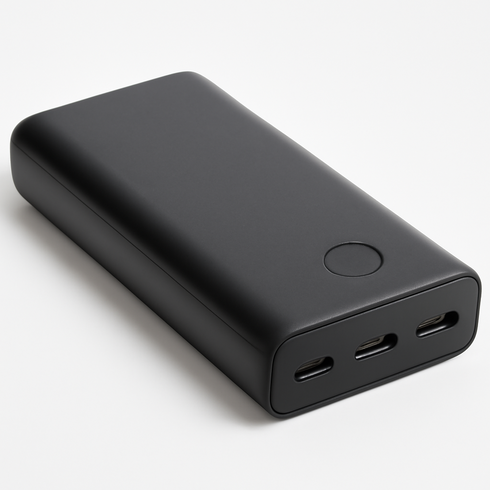
Brand: Anker
High 26,800mAh capacity provides multiple full charges for smartphones and can keep tablets and phones powered through long flights or multi-day trips. Trusted brand with multiple USB outputs for charging several devices at once, fast-charging technologies (PowerIQ/VoltageBoost) for efficient charging, and capacity that stays within typical airline carry-on limits (under ~100Wh), making it a reliable travel companion.
WHOOSH! Screen Shine Smartphone, Tablet & Laptop Cleaner Kit (Travel Size)
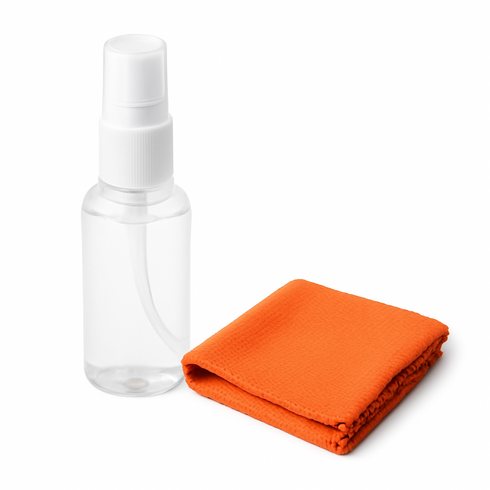
Brand: WHOOSH!
Compact travel-sized spray plus a premium microfiber cloth makes it ideal for travelers who need quick, residue-free cleaning on phones, tablets, laptops, and camera lenses. WHOOSH! is a trusted, non-toxic formula safe for screen coatings and widely used in retail/repair environments, providing effective grease and fingerprint removal without streaks.
3M Anti-Glare Filter for 14-inch Notebook (PF14.0W)
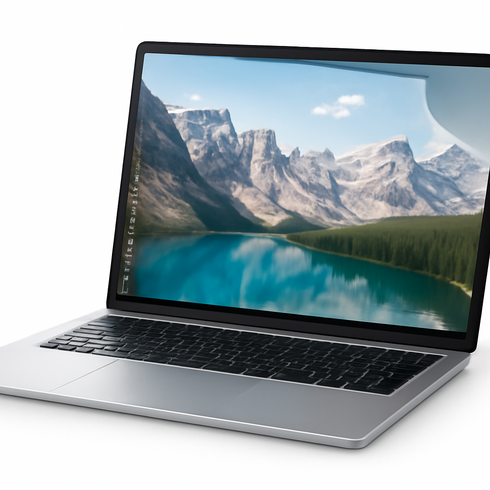
Brand: 3M
Trusted 3M build quality with a matte, anti-reflection coating that cuts glare and reduces eye strain in bright environments. Lightweight and slim—easy to attach/remove for frequent travelers—while protecting the screen from scratches and fingerprints. Ideal for use on planes, cafes, and outdoor workspaces.
Brother PocketJet 773 Full-Page Mobile Thermal Printer
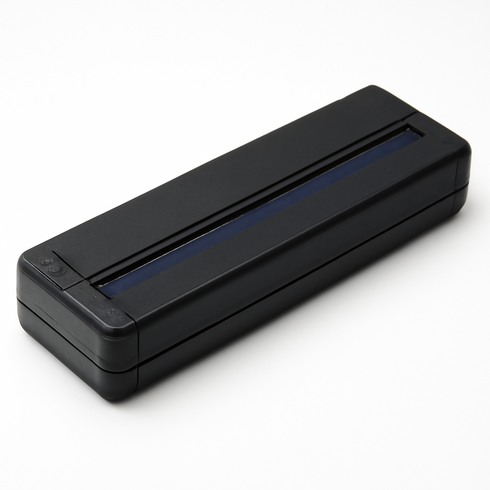
Brand: Brother
Compact full-page (up to 8.5") thermal printer from a trusted brand—prints fast without ink or ribbons, making it ideal for reprinting boarding passes, receipts, invoices and labels on the move. Built for mobile professionals and travelers: small footprint that fits in a backpack or carry bag, supports battery operation and wireless/USB connections (driver/mobile SDK support), and delivers crisp, durable monochrome output for on-the-go needs.
Comparison Table
| Product Type | Best Use | Main Advantage | Downside | Who Should Choose It |
|---|---|---|---|---|
| Anker PowerCore 26800 Portable Charger | Keeping your phone charged through long travel days so mobile boarding passes display reliably. | Provides multiple full charges and fast recharges for phones and other devices, reducing risk of low-battery scan failures. | Can be bulky or heavy; very high-capacity units may face airline/TSA restrictions and require carry-on only. | Frequent flyers, long-haul travelers, and anyone who relies on digital passes without ready access to outlets. |
| WHOOSH! Screen Shine Smartphone, Tablet & Laptop Cleaner Kit (Travel Size) | Quickly removing fingerprints, smudges and residues that interfere with barcode readability. | Lightweight, inexpensive, and effective at restoring screen clarity for immediate scanning. | Consumable—requires occasional replacement; won’t fix low brightness or app-rendering issues. | Casual travelers and those who regularly use their phone screens in transit and want a low-cost fix. |
| 3M Anti-Glare Filter for 14-inch Notebook (PF14.0W) | Minimizing glare and reflections when presenting a pass under bright lights or at security lanes. | Reduces reflections and improves contrast in challenging lighting, while protecting the screen. | May slightly reduce perceived brightness or sharpness; requires careful installation and occasional replacement. | Travelers in sunny climates, outdoor layovers, or anyone who often struggles with screen glare at gates. |
| Brother PocketJet 773 Full-Page Mobile Thermal Printer | Printing a physical boarding pass on the go when kiosks are unavailable or for group/remote travel situations. | Delivers an immediate paper boarding pass without relying on airport printers or agents. | Extra device to carry with consumables (thermal paper) and charging needs; overkill for most short hops. | Business travelers, remote itineraries, group leaders, or tech-savvy travelers who want a guaranteed paper backup. |
FAQ
Why won’t my boarding pass scan?
Common causes include low screen brightness, glare or smudges, app or OS rendering issues, damaged printed barcodes, or connection problems preventing the boarding pass from loading correctly.
Can I still board if the boarding pass won’t scan?
Yes. Agents can manually verify your booking with your ID and booking reference and reprint a boarding pass. Arrive early and show ID to avoid delays.
Is a screenshot of my boarding pass valid?
Most airlines and TSA accept screenshots or saved PDFs. Add the pass to Apple/Google Wallet when available for more reliable scanning.
Will the airline reprint my boarding pass for free?
Usually yes at the gate or check-in desk, especially if boarding is imminent. Fees are rare for reprints related to scanning issues, but policies vary by airline.
How can I prevent this from happening again?
Save passes offline (screenshot/PDF), add to Wallet, keep your phone charged with a power bank, test the display at check-in, and carry a printed backup when possible.
Conclusion
If your boarding pass won’t scan, the fastest move is to capture a screenshot (or open the pass in Apple/Google Wallet) and show that to the gate agent—if scanning still fails they can reprint your pass or board you manually using your ID and booking reference, so stay calm and ask for assistance immediately.