When the hotel wifi login page not working refuses to accept your room number it’s more than a minor irritation — it can stop you from checking maps, joining a meeting, or handling a last-minute booking. The captive portal that asks for a room number is supposed to gate access, but format mismatches, browser quirks, or device settings can leave you offline at a time you need connectivity most.
This guide walks through practical, airport-to-bedside fixes to get you back online: simple checks and browser tricks, device and network workarounds, short-term alternatives if the portal won’t cooperate, and when to escalate to the front desk or hotel IT so you can move on with your trip without wasting time.
Quick Answer
If the hotel WiFi login page not working and it keeps rejecting your room number, start by confirming the exact room-number format the network expects and that the desk has registered your stay. Next, trigger the captive portal on your device (incognito/clear cookies, open an http site or the router IP), disable VPNs/proxies/custom DNS, and try a different device. If none of that works, use your phone as a temporary hotspot and ask the front desk to whitelist your device or resolve any billing/registration hold.
- Verify the exact room-number format with reception and confirm the hotel has registered your MAC/address.
- Force the login page: open an unencrypted page or router IP, use private mode, clear cookies, and try another device.
- Disable VPNs/DNS overrides; if still offline, use phone tethering and get front-desk or IT help to whitelist you.
Why This Happens
When the hotel wifi login page not working is centered on a room-number prompt, it usually isn’t a mystery — it’s how hotel networks authenticate, segment and bill guests combined with a handful of technical quirks. The visible symptom (the login page refusing a room number or never appearing) can come from administrative rules, captive‑portal mechanics, device behavior, or simple misconfiguration on the network side.
- Authentication tied to reservations or room-format rules — Many hotels use the room number as a key in a back‑end system. If the system expects a specific format (building code, leading zeroes, or reservation ID) a plain number won’t match the record and access is denied.
- MAC address and device registration — Hotels often register your device MAC address rather than just a username. If the MAC wasn’t recorded correctly at check‑in, or if MAC filtering/whitelisting is in place, the portal won’t grant access even when the room number is entered.
- Captive‑portal redirect failures — The “login page” is usually a forced redirect from any web request to the portal server. That redirect can be blocked by HTTPS/HSTS, browser caching, or by devices that don’t trigger captive‑portal detection, so the portal never loads.
- VPNs, proxies, and custom DNS — Anything that changes DNS lookups or routes (VPNs, proxy services, custom DNS entries) can prevent the hotel’s portal from intercepting traffic, so authentication can’t complete.
- Network segmentation and VLANs — Hotels use VLANs to separate guest, staff and IoT networks. If you connect to the wrong SSID, or the AP incorrectly tags your traffic, you may be on a segment that has no portal or a different authentication method.
- Stale DHCP leases or IP conflicts — A device with a stale IP or a conflict with another device can fail to reach the portal server, making the login page unreachable or unreliable.
- Load, timeouts and misconfigured gateway — Portal servers or gateway appliances can be overloaded, misrouted, or have firewall rules that block the login flow; sometimes the page times out or returns errors rather than accepting credentials.
- Device/OS captive‑portal quirks — iOS, Android, Windows and macOS each probe the network differently to detect captive portals. Those probes can fail (or be misinterpreted by the hotel system), so the OS won’t pop up the login screen even though the portal exists.
- Multiple SSIDs and similar network names — Hotels often run several overlapping SSIDs (guest, conference, bandwith-tiered). Connecting to the wrong one or to an AP that’s been assigned to internal use will prevent the expected room‑number workflow.
- Administrative holds or billing checks — Access can be blocked server‑side for unpaid charges, missing ID/registration, or a reservation mismatch. In those cases the portal may reject input without a clear error message.
- IPv6 vs IPv4 routing issues — If the guest device prefers IPv6 but the captive‑portal is only intercepting IPv4, the device may seem online while still blocked from general internet access and login completion.
Practical Solutions
When the hotel wifi login page not working is the issue, focus on fast, low-effort fixes first, then move to short-term workarounds or small hardware solutions if needed.
Quick, free fixes
- Toggle Wi‑Fi off/on, forget the network and reconnect to force a fresh captive-portal attempt.
- Open an unencrypted site (http://example.com) or enter the router IP (often 192.168.0.1 or 192.168.1.1) to trigger the login page.
- Use an incognito/private browser window and clear cookies for the network domain so stale sessions don’t block the portal.
- Temporarily disable VPNs, proxy apps, or custom DNS entries—these commonly prevent the captive portal from loading.
- Try a second device (phone/tablet/laptop). If the portal appears on one device but not another, the problem is local to that device’s settings.
Front-desk and account checks
- Ask reception to confirm your room number format and that your room is registered on the network. Hotels may whitelist a device MAC address or require a payment hold before granting access.
- Request that staff push a re-authentication or temporarily whitelist your MAC address while you connect.
- If the desk can’t help, ask for the hotel IT contact or whether wired Ethernet is available in your room or business center.
Fast temporary workarounds
- Use your phone’s mobile data via hotspot/tethering for secure, immediate internet on other devices.
- Buy a short‑term eSIM or prepaid local SIM with data if you expect prolonged use away from reliable Wi‑Fi.
- Consider renting or buying a portable 4G/5G mobile hotspot (MiFi) for multi-device connectivity without relying on the hotel network.
Small hardware and advanced fixes
- Travel router that supports captive‑portal handling: connect the router to the hotel Wi‑Fi, complete the captive‑portal login from one device, and let the router share that authenticated connection to your other devices.
- MAC cloning: if the hotel ties access to a device MAC, clone the MAC of a device that can authenticate (usually your phone) onto your laptop or travel router so the portal recognizes the device. Most travel routers and some phone apps offer this feature—use it only when you own both devices and understand the privacy implications.
- USB-C or Lightning tethering cable: a wired tether from phone to laptop gives slightly faster, more reliable tethering than wireless hotspot in some cases and avoids captive-portal headaches on the laptop.
When to escalate
- If none of the above works, ask for hotel IT help—there may be a backend issue, billing hold, or MAC‑whitelisting step they can perform.
- Request temporary wired access, a business-center workstation, or (rarely) a room change if the property’s wireless coverage is unreliable.
Recommended Products
When a hotel WiFi login page won’t accept your room number or the captive portal won’t load, these items give you reliable alternatives and tools to complete authentication: a portable MiFi keeps you online independent of the property network, an eSIM or prepaid local SIM provides easy data access, a tethering cable makes your phone a stable modem for a laptop, and a small travel router can solve captive‑portal and MAC‑cloning issues so multiple devices connect seamlessly.
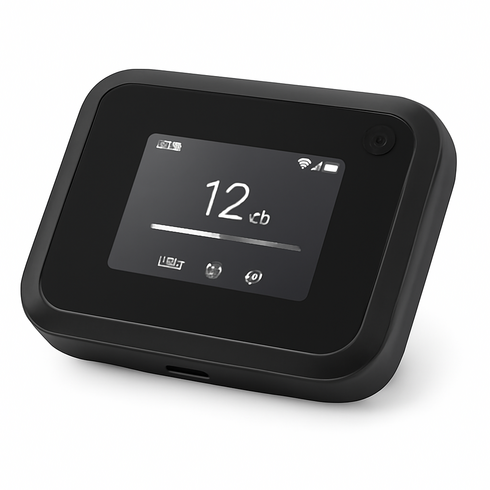
Netgear Nighthawk M5 (MR5200) 5G Mobile Hotspot
Brand: Netgear
Reliable, travel-friendly 5G MiFi from a trusted brand. The Nighthawk M5 delivers 5G connectivity with Wi‑Fi 6 performance, supports multiple concurrent devices, includes a rechargeable battery for all-day use, and has an Ethernet port for wired connections—making it ideal for frequent travelers who need fast, portable internet. Widely available and supported, with unlocked/carrier variants on Amazon.
Holafly Global eSIM — 10GB (30 days)

Brand: Holafly
App-activated eSIM designed for travelers: instant activation with no physical SIM swap, reliable coverage across 130+ countries, and a 30-day 10GB option that fits short-term international trips. Holafly is traveler-focused and offers easy top-ups and customer support.
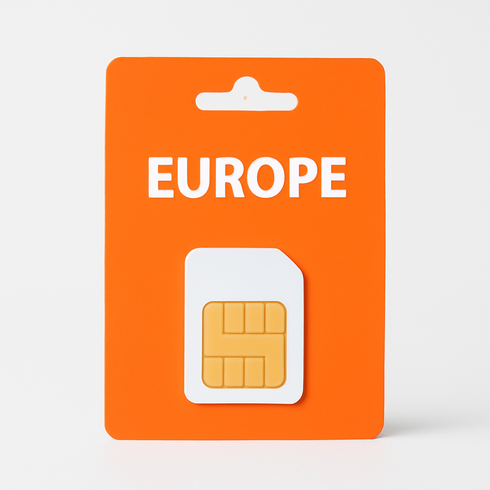
Orange Holiday Europe Prepaid SIM Card
Brand: Orange
Trusted, traveler-focused prepaid SIM that works across most European countries. Comes preloaded with a generous data allowance plus local minutes and texts, easy activation out of the box, and reliable Orange network coverage—ideal for short trips across multiple countries without roaming hassles.
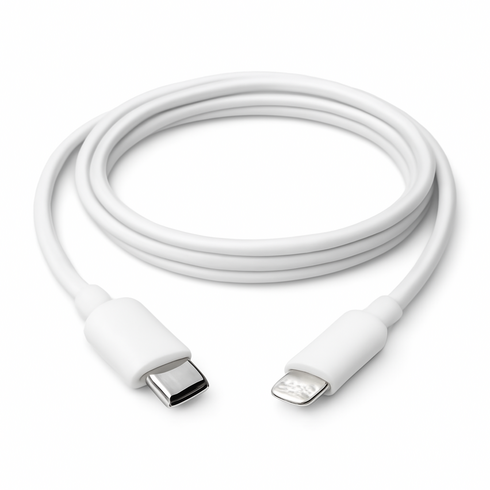
PowerLine III USB-C to Lightning Cable (3 ft)
Brand: Anker
MFi-certified USB-C to Lightning cable that supports data transfer and iPhone-to-laptop tethering, plus USB Power Delivery fast charging. Built with durable, travel-friendly braided/sleek design and reinforced connectors for frequent plugging/unplugging—ideal for travelers who need reliable phone-to-laptop data and charging on the go.
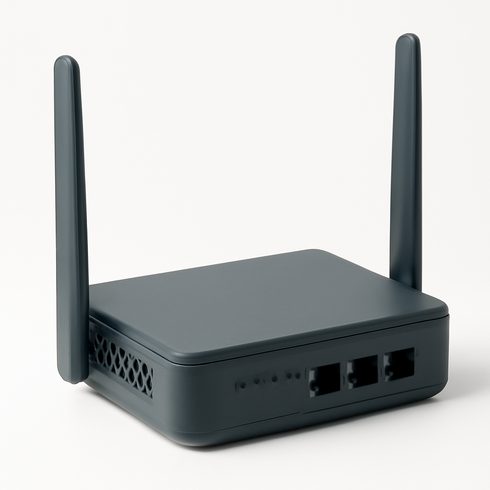
GL.iNet GL-AR750S (Slate) Travel Router
Brand: GL.iNet
Compact, travel-focused router with OpenWrt-based firmware that supports captive-portal handling (allows logging into hotel/airport Wi‑Fi from the router UI) and MAC cloning for stubborn networks. Dual‑band AC, three Ethernet ports, USB for storage/3G dongles, and built‑in VPN (WireGuard/OpenVPN) make it a versatile, trusted choice for frequent travelers.
Comparison Table
| Product Type | Best Use | Main Advantage | Downside | Who Should Choose It |
|---|---|---|---|---|
| Netgear Nighthawk M5 (MR5200) 5G Mobile Hotspot | When the hotel login page won’t work and you need an independent internet connection for multiple devices. | Provides a cellular connection that bypasses hotel captive portals and supports several devices at once. | Requires separate device and data plan; signal quality depends on local cellular coverage; limited battery life. | Groups, streamers, or remote workers who need reliable, shareable internet without dealing with hotel portals. |
| Holafly Global eSIM — 10GB (30 days) | Short stays abroad where you want instant data on a compatible phone without swapping SIMs. | Activates quickly on-capable phones, no physical SIM required, avoids hotel WiFi authentication entirely. | Only works with eSIM-capable devices; data allowances can be limited and plans vary by region. | Solo international travelers with modern phones who want a no-hassle backup to hotel WiFi. |
| Orange Holiday Europe Prepaid SIM Card | Longer stays or heavy local data use where cost-per-GB and coverage matter. | Generally offers the best local rates and data volumes; works across multiple apps without captive-portal issues. | Requires unlocked phone and a physical SIM swap; may need in-country registration or ID for purchase. | Extended-stay visitors, heavy data users, or anyone who wants cheaper local connectivity. |
| PowerLine III USB-C to Lightning Cable (3 ft) | When you need a stable, low-latency connection from your phone to a laptop without using the hotel’s WiFi. | Direct wired tethering is reliable, often faster and more secure than WiFi, and can charge the phone while connected. | Consumes mobile data; typically connects only one device; requires compatible cable and ports. | Digital nomads and remote workers who primarily need laptop access and want a secure, stable link. |
| GL.iNet GL-AR750S (Slate) Travel Router | When a hotel requires device registration by MAC or you want to share a single authenticated connection across multiple gadgets. | Handles captive-portal quirks, can clone MAC addresses, and creates a private local network for all devices. | Adds hardware and setup complexity; some hotels may restrict routers; initial configuration needed. | Tech-savvy travelers, families, or small teams who repeatedly face hotel login problems and need a consistent solution. |
FAQ
Why does the hotel WiFi ask for a room number?
Hotels use room numbers to authenticate guests, map access to a reservation for billing or vouchers, and limit network access to registered occupants.
What room number format should I try if the login won’t accept mine?
Try variations: just the number (123), building+room (A123), leading zeros (0123), or your reservation ID. If none work, ask reception for the exact format they expect.
My laptop won’t reach the login page — what quick browser fixes help?
Open an unencrypted http site (not https), use an incognito/private window, clear cookies/cache, or type the common router IP (e.g., 192.168.1.1) to trigger the captive portal.
Will using a VPN prevent the login page from working?
Yes. VPNs, proxies, and custom DNS can block the captive portal. Disable them until you complete authentication, then reconnect if needed.
Is there a safe temporary workaround if the hotel WiFi login won’t work?
Yes—use your phone’s mobile data as a hotspot or tethering cable, or buy a short-term eSIM/portable hotspot to get online securely.
When should I contact the front desk or hotel IT?
Contact them after basic fixes (different device, browser, reboot) fail. Ask staff to confirm your room registration, whether your device MAC is whitelisted, and if there are any billing holds blocking access.
Conclusion
If the hotel WiFi login page not working stalls on your room number, the fastest practical move is to confirm the exact room-number format and that your room is registered for Wi‑Fi at the front desk, then retry without any VPNs or custom DNS. If that doesn’t clear it and you need immediate access, switch to your phone’s hotspot or ask hotel IT/front desk for wired access or MAC whitelisting—those options get you online while deeper troubleshooting continues.