You’ve connected to the hotel network but the login page never pops up, leaving your phone or laptop stuck offline just when you need maps, work email, or a boarding pass. It’s a common travel annoyance that wastes time and can force you onto insecure workarounds if you don’t handle it correctly.
This guide walks through practical, fast fixes and safer fallbacks so you can force hotel wifi login page to appear, get online, and protect your data—covering quick checks, browser and device tricks, simple network commands, and hardware or tethering options when the portal still won’t load.
Quick Answer
If the hotel Wi‑Fi login page won’t appear, disable any VPN or private DNS, turn off ad‑blockers, then open a plain HTTP page (for example http://neverssl.com or http://captive.apple.com) to trigger the captive portal. If that fails, forget the network and reconnect, toggle Wi‑Fi or airplane mode, try a browser in private/incognito mode, or paste the router gateway IP into your browser. If nothing works, ask the front desk for the correct SSID/voucher or use mobile data (hotspot/eSIM) or a travel router as a quick fallback.
- Disable VPN, private DNS and ad‑blockers, then open http://neverssl.com
- Forget the network, toggle Wi‑Fi/airplane mode, then reconnect
- Try incognito/private mode or a different browser and clear cached redirects
- Paste a common gateway IP (e.g., 192.168.1.1 or 10.0.0.1) into the browser
- Disable MAC address randomization on the device so the portal recognizes you
- If still blocked, ask front desk for SSID/voucher or use mobile hotspot/eSIM or a travel router
Why This Happens
When a hotel Wi‑Fi login page won’t appear, it’s almost always because something is preventing the network’s captive‑portal redirection from reaching your browser or your device has already been tricked into thinking it has working internet. The portal is a simple web interception designed to force an HTTP request to the hotel’s sign‑in page; anything that disrupts DNS, HTTP redirects, device identity, or the portal server itself can stop that from happening.
- HTTPS and secure redirects: Modern browsers and sites default to HTTPS, and captive portals can’t present their login page over a secure connection. If your first request is to an HTTPS site or the browser enforces HSTS, the portal can’t intercept it and you won’t get redirected.
- VPNs and custom DNS (including Private DNS): A VPN or custom DNS service routes or encrypts traffic so the hotel’s system can’t catch your initial DNS/HTTP request and push the login page back to you.
- Device privacy features (MAC randomization / private addresses): When a device randomizes its MAC address, the hotel’s DHCP server and any whitelist the property uses may not recognize you, causing the portal’s session mapping to fail or never begin.
- Captive‑portal detection quirks: Operating systems (Android, iOS, Windows, macOS) use their own reachability checks to detect captive portals. If those checks return a “connected” result (because the hotel’s test endpoints respond oddly), your OS won’t trigger the login workflow.
- DHCP, IP or gateway mismatches: If your device receives a bad IP, stale lease, or wrong gateway from the network, it won’t be able to reach the portal server. Similarly, roaming between multiple APs or SSIDs can leave you assigned to a subnet that isn’t routed to the portal.
- DNS caching and stale records: Your system or browser can cache DNS lookups; if a previous lookup points somewhere else, the hotel’s DNS‑based redirect won’t apply and the portal won’t show.
- Hotel network overload or misconfiguration: The captive‑portal server or backend authentication service can be overloaded, misconfigured, or down, meaning the redirection fails on the network side rather than your device.
- IPv6 vs IPv4 issues: Some portals only handle IPv4. If your device prefers IPv6, the redirect may never occur because the portal infrastructure doesn’t intercept IPv6 traffic.
- Local firewalls or security apps: Personal firewalls, ad blockers, or security apps that block script/DNS or intercept web requests can stop the initial, unsecure HTTP connection the portal needs to trigger the login page.
Practical Solutions
When the hotel captive portal refuses to appear, work through these practical, tiered solutions—from quick, free fixes you can try in a minute to hardware and paid fallbacks that get you online reliably.
Quick, free fixes
- Turn off VPN, ad blockers and any custom/Private DNS settings before reconnecting; those are the most common blockers.
- Toggle Wi‑Fi or airplane mode, then reconnect to the hotel SSID and try loading a plain HTTP page in your browser.
- Forget the network and reconnect, or reboot the device—simple DHCP refreshes often trigger the portal.
- If possible, confirm the exact SSID and login method with the front desk (some hotels use vouchers or a different SSID for guests).
Browser and device tricks
- Open a new private/incognito window or try a different browser to avoid cached HTTPS redirects that hide the portal.
- Disable MAC address randomization or “private address” features so the network recognizes your device consistently.
- Enter the network gateway IP in the browser address bar if the portal won’t redirect automatically (find the gateway in your device’s Wi‑Fi connection details).
Network-level resets (no special tools required)
- Use your OS’s network reset options: renew the DHCP lease, flush DNS via the OS network utility, or restart networking services if available.
- On mobile, disable any „Private DNS“ or custom DNS providers and then reconnect—modern phones defaulting to encrypted DNS frequently block captive portals.
- If one device won’t show the portal, try another device to isolate whether it’s a device-specific problem.
Hardware and local-network workarounds
- Use a travel router in client/repeater mode to create your own private SSID; the router handles the hotel login and then shares internet to your devices.
- If the room has a wired Ethernet port, plug a travel router or laptop into it—many captive portals behave better over a wired connection.
- Use a laptop as a bridge: sign into the hotel Wi‑Fi on the laptop, then share that connection as a hotspot for your phone or tablet.
Fallback paid options
- Activate an eSIM or buy a short-term cellular data plan to tether immediately when the hotel network fails.
- Rent or buy a portable Wi‑Fi hotspot for reliable, independent internet access while you sort out the hotel portal.
- Consider a local SIM if you’ll be in one place for several days and need dependable bandwidth for work or streaming.
Practical front‑desk requests
- Ask staff to verify whether vouchers or a specific login URL are required, and request that they whitelist your device’s MAC if needed.
- If multiple guests have issues, ask the front desk to restart the access point or contact their ISP—sometimes the problem is on their side.
Minimal post‑connection hygiene
- Only enable a VPN after the captive portal completes; using a VPN beforehand usually prevents the portal from appearing.
- When you’re done, forget the hotel network to avoid automatic reconnection the next time its portal is broken.
Recommended Products
When a captive portal won’t load, these fallbacks let you get online fast or create a private network that forces the login page to appear: an eSIM for instant mobile data, a portable Wi‑Fi hotspot as an independent connection, and a compact travel router to surface or share the hotel portal.
Airalo Global eSIM — 6GB / 30 days

Brand: Airalo
Airalo’s Global eSIM lets travelers buy and install local/global data instantly via the app without swapping physical SIMs. The 6GB/30-day global plan is a versatile choice for short-to-medium trips across multiple countries, offering reliable coverage, competitive pricing vs. roaming, and easy activation on eSIM-capable phones—ideal for flexible international travel.
Skyroam Solis (Global WiFi Hotspot)
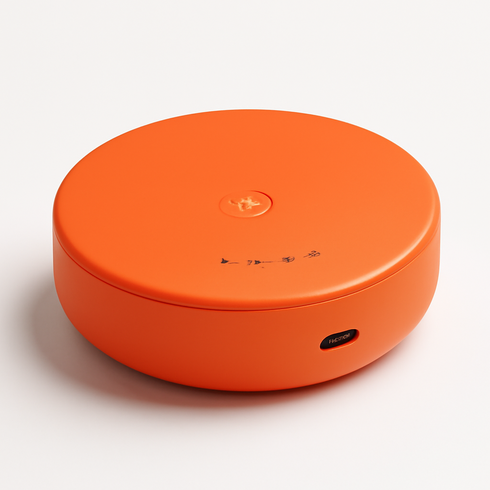
Brand: Skyroam
Well-known portable global hotspot designed for short-term travelers: offers pay-as-you-go day passes and short rental options across 130+ countries, creates a secure Wi‑Fi network without swapping SIMs, supports multiple device connections (typically up to 10), and has long battery life suitable for a travel day. Managed via an easy app for topping up data and monitoring usage—trusted, traveler-friendly solution for short international trips.
TP-Link TL-WR902AC AC750 Wireless Travel Router
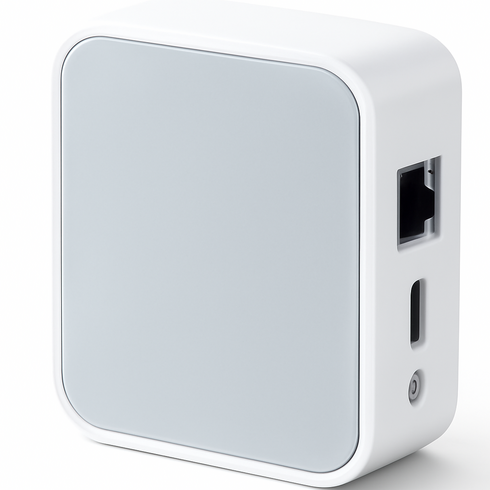
Brand: TP-Link
Compact AC750 travel router from a trusted networking brand. Supports Client and Range Extender (repeater) modes to bridge hotel or public Wi‑Fi and surface captive portals for login, dual‑band 2.4/5 GHz for better throughput, Ethernet/WAN port for wired connections, USB power (works with power banks), and an easy mobile/web setup—ideal for travelers needing to authenticate through captive portals and extend/secure connections on the go.
Comparison Table
| Product Type | Best Use | Main Advantage | Downside | Who Should Choose It |
|---|---|---|---|---|
| Airalo Global eSIM — 6GB / 30 days | Immediate cellular data backup on a single device to bypass a hotel captive portal or to get online before sorting Wi‑Fi. | Instant setup without extra hardware; works anywhere the carrier or eSIM provider has coverage. | Data limits and cost can add up; requires an eSIM‑capable device or app and variable regional support. | Solo travelers, remote workers who need a fast fallback, or anyone with an eSIM‑ready phone. |
| Skyroam Solis (Global WiFi Hotspot) | Temporary shared internet for multiple devices when hotel Wi‑Fi is unreliable or the portal won’t load. | Connects several devices at once and avoids the hotel network entirely; easy for groups. | Rental/purchase and daily data fees; battery life and international coverage vary. | Families, small groups, or travelers who need stable multi‑device connections without dealing with captive portals. |
| TP-Link TL-WR902AC AC750 Wireless Travel Router | Create a private local network in a room (client/repeater mode) to surface the captive portal and let multiple devices share a single authenticated session. | Gives you control over the SSID and device registration; often forces the login page to appear and reduces repeated logins per device. | Requires setup and a small piece of hardware; some hotel networks or staff policies may limit functionality. | Frequent travelers, business users, or tech‑savvy guests who want to manage connections and avoid repeated portal logins. |
FAQ
Why won’t the hotel WiFi login page appear even though I’m connected?
Common causes are an active VPN or Private DNS, HTTPS redirects that hide the captive portal, MAC address randomization, DHCP/network stack issues on your device, or the hotel’s captive portal server being overloaded or misconfigured.
What quick trick will usually force the captive portal to show?
Turn off VPN/Private DNS, then open a non‑HTTPS page such as http://neverssl.com or http://captive.apple.com. If that fails, forget the network and reconnect or toggle airplane mode to reset the connection.
Which IP addresses can I try to open the login page manually?
Try common gateway IPs like 192.168.1.1, 10.0.0.1 or 172.16.0.1. You can also check your device’s gateway via ipconfig/ifconfig and paste that address into the browser to reach the router/login page.
Can a travel router or portable hotspot really solve this?
Yes. A travel router in client/repeater mode often creates a private SSID that surfaces the portal or isolates you from the hotel’s network quirks; a portable hotspot or eSIM gives independent internet access so you can bypass the hotel Wi‑Fi entirely.
When should I ask the front desk for help?
Ask the front desk after you’ve tried basic fixes. Request the exact SSID, whether vouchers or a direct login URL are required, ask them to whitelist your device MAC, or have staff restart the access point if multiple guests report the issue.
Conclusion
For a quick, practical answer on how to force hotel wifi login page: start by disabling VPN/Private DNS and opening a plain HTTP page to trigger the captive portal; if that fails, forget the network and reconnect or try the gateway IP, and if all else fails switch to mobile data (tether/eSIM) or a travel router and ask the front desk to whitelist your device. These steps escalate from fastest to most reliable so you’ll be online with minimal fuss.